


We’ve been running our own Google Analytics and Search Console data through Claude via MCP for more than three months now, so this isn’t theory. There are two ways to get your SEO data in front of Claude. One’s a live connection that answers questions in real time. The other’s a five-minute export-and-upload with no setup at all. Most guides only cover one of these, usually the technical one, and skip past the fact that plenty of teams don’t need it.
This page covers both, in two clearly separated sections, so you can jump straight to whichever one actually fits how your team works.
What MCP actually is, in one paragraph
MCP, short for Model Context Protocol, is what Anthropic built to let Claude connect directly to outside tools and data sources instead of only working from whatever’s pasted into a conversation. Once a tool’s connected through MCP, you can ask Claude a question and it pulls the real, current answer from that tool, rather than you exporting a report first and pasting it in. Anthropic’s own documentation covers the technical side of how MCP works in full, so this page won’t repeat that, it’s focused on what it means for an SEO workflow specifically.
Setting up the live connection (MCP route)
The tools worth connecting for most SEO teams: Google Analytics, Google Search Console, Semrush for keyword and competitor data, and Screaming Frog for crawl data. Each connects separately, and each needs someone comfortable with a bit of technical setup to configure the first time. We’ve had Google Analytics and Search Console connected this way for three months now, so here’s what that setup actually looks like, not a guess at how it might work.
Connecting Google Analytics (GA4) to Claude
Google maintains its own MCP server for Google Analytics, google-analytics-mcp, currently labelled “experimental” by Google itself. It gives an AI assistant read-only access to GA4 data through seven tools: pulling account and property details, running standard and funnel reports, checking custom dimensions and metrics, and running realtime reports.
Setup runs through Google Cloud rather than through Claude itself: enable the Analytics Admin API and Data API in a Google Cloud project, then set up Application Default Credentials scoped specifically to analytics. Read-only: the connection can only read data, never change anything in the account.
Worth being precise here rather than glossing over it: Google’s own setup documentation shows this configured for Gemini CLI and for Claude Code, Anthropic’s command-line coding tool, not the Claude.ai chat interface most marketers use day to day. If your team isn’t already comfortable working in a command line, this is exactly the kind of setup worth handing to someone technical rather than working through it solo.
Connecting Google Search Console to Claude
For Search Console, the more SEO-specific option is a community-built server, mcp-gsc, built explicitly for SEOs and documented to work directly with the Claude Desktop app. It ships with 20 tools covering property management, search analytics (queries, clicks, impressions, and position, including period-over-period comparisons), URL inspection and indexing checks, and sitemap management.
A few details worth knowing before setting it up: authentication runs through either your own Google account (the simpler route for one person) or a service account (better when a team needs to share one connection), destructive actions like deleting a site or a sitemap are switched off by default until someone deliberately enables them, and there’s a setting to choose between GSC’s live dashboard numbers or “final,” confirmed-only data with a 2-3 day lag, worth knowing about if a client ever asks why two reports don’t match exactly.
It also ships with four ready-built skills, a weekly performance report, a keyword cannibalisation check, an indexing audit, and a content-opportunities finder, a real, concrete example of the skills concept covered elsewhere in this cluster, already packaged rather than built from scratch.
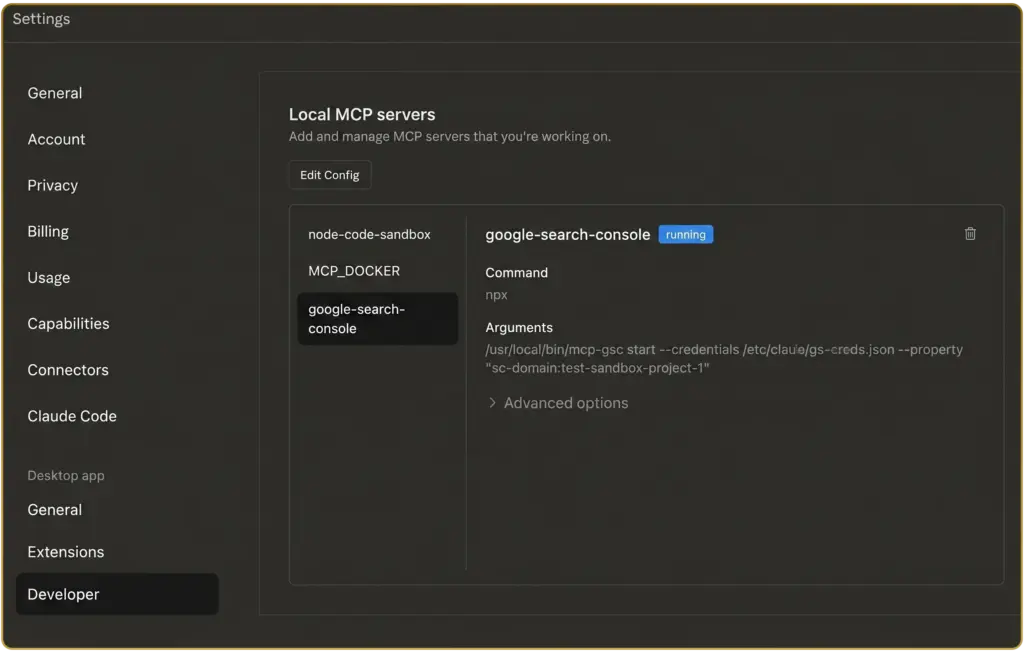
One practical limit worth flagging: this version runs locally on a machine and only works inside the Claude Desktop app, not the claude.ai website. Teams that want browser access with no local setup have the option of a hosted, paid version of the same tool from its developer, that’s a separate third-party product we’re not affiliated with, mentioned here for completeness rather than as a recommendation either way.
It’s worth having one person own whichever setup a team uses rather than everyone configuring their own version. A connection set up once, correctly, and shared across the team beats several slightly different individual setups that all behave differently.
The no-code alternative: exporting GSC and GA4 data
If MCP feels like more setup than you want right now, or there’s no one available to own it, this route skips it entirely. Export a Search Console report (queries and pages is usually the most useful combination) or a standard GA4 report, then upload the file straight into a Claude conversation or a Project.
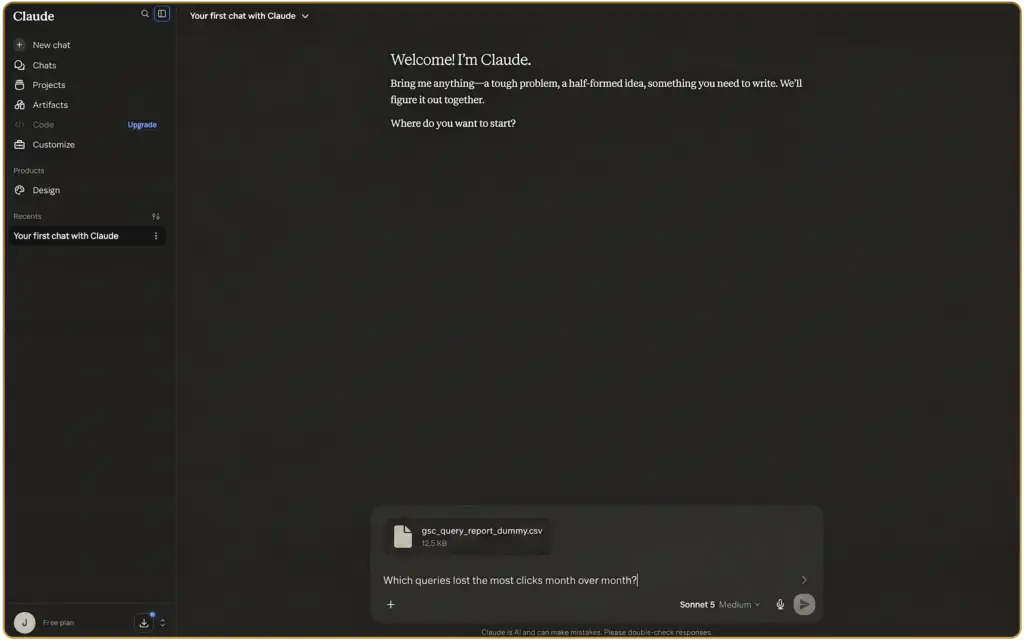
The trade-off is honest: this is slower if you’re doing it every week, and the data’s only as current as the moment you exported it. But there’s no setup, no permissions to sort out, and nothing that breaks if someone leaves the team. For occasional analysis, or a team without a dedicated technical owner, this is often the more practical starting point, and it’s a fine way to get a feel for what Claude can actually do with the data before committing to a live connection.
A worked example
Take a GSC query export and ask Claude to find the queries that lost the most clicks month over month, then ask what’s likely behind the drop for the top few. It’ll usually flag the obvious candidates fast: a page that dropped in ranking, a seasonal query, cannibalisation between two pages targeting the same term. It won’t always get the real cause right, sometimes the answer needs a human checking Google’s own updates or a technical change nobody logged, but it turns “where do I even start” into a short, checkable list in minutes instead of an hour of manual filtering.
Which route actually fits your team
If more than one person needs to ask questions about the same client’s data regularly, set up the live MCP connection, it pays for the setup time quickly. If it’s occasional, or there’s genuinely no one to own an ongoing technical connection, the export route is the right call and there’s no shame in starting there. Plenty of teams run both: MCP for the accounts that get asked about constantly, exports for the smaller or less active ones.
What breaks, and who has to own it
Worth being straight about this rather than making either route sound maintenance-free. A live MCP connection can break: a tool changes its API, a login expires, a permission gets revoked when someone leaves. Someone needs to notice before a client asks why a number looks wrong, not after. Three months of running this ourselves is enough to say plainly that it’s not “set up once and forget,” someone on the team needs to actually own checking it’s still working, the same way you’d own any other piece of client-facing infrastructure.
The export route has a different failure mode. It only ever shows what was true the moment you pulled it, so if you’re working from last month’s export and something’s changed since, you won’t catch it unless you remember to check. Neither route is “set and forget,” they just fail in different ways.
Where this fits
Getting a connection working once, whichever route you pick, is the easy part. Keeping every client’s connection live, catching breakages before a client does, and knowing which route fits which account, especially once you’re running this across ten or twenty clients rather than one, is where it turns into a real operational job, which is exactly what we’ve been managing on our own accounts for the past three months.
If you’d rather have this set up and maintained for you, that’s what our AI SEO Dubai service covers, with technical SEO handling the crawl-data side specifically. Not ready for that conversation yet? Run your site through the free SEO & AI Visibility Audit first and see where you stand.
Once your data’s flowing into Claude, the natural next steps are giving it somewhere to remember client context permanently, Claude Skills and Projects for SEO Teams , or turning a Screaming Frog crawl into an actual fixable priority list, Claude Technical SEO Audit.
For the rest of the ways Claude fits into an SEO workflow, see the full guide: How to Use Claude for SEO.
Sources cited
- Semrush Keyword Analytics: claude mcp, claude google analytics, claude ga4, claude google search console, AE and US databases, pulled 2026-07-28.
- Anthropic, Model Context Protocol documentation — referenced for how MCP works, not re-explained in full here.
- google-analytics-mcp, Google’s official GA4 MCP server repository — tool list, setup steps, and Claude Code configuration, checked 2026-07-29.
- mcp-gsc, community-built Search Console MCP server for SEOs — tool list, setup steps, bundled Skills, and data-freshness settings, checked 2026-07-29.
FAQs
What’s the difference between connecting Claude via MCP and using data exports?
MCP gives Claude a live connection to tools like Google Analytics or Search Console, so it pulls current data directly when asked. Exporting data means downloading a report and uploading it into a conversation manually, an approach that takes about five minutes with no technical setup, but only reflects data as current as the moment it was exported.
Does Google’s official GA4 MCP server work with the standard Claude.ai chat interface?
No. Google’s own setup documentation for its GA4 MCP server, google-analytics-mcp, shows it configured for Gemini CLI and Claude Code, Anthropic’s command-line tool, rather than the Claude.ai website most marketers use day to day. It’s also labelled “experimental” by Google, so teams without command-line experience should hand this setup to someone technical.
Which team should choose the export route instead of a live MCP connection?
The export route suits teams doing occasional analysis or without a dedicated technical person to own an ongoing connection. It’s slower if repeated weekly and only reflects data from the moment of export, but needs no setup or permissions, and nothing breaks if a team member leaves. Many teams run both: live MCP for regularly-asked-about accounts and exports for smaller ones.
What happens when a live MCP connection to an SEO tool breaks?
A live MCP connection can break when a tool changes its API, a login expires, or a permission is revoked when someone leaves the team. Someone needs to notice before a client asks why a number looks wrong, so it isn’t something to set up once and forget; it needs an owner checking it’s still working, like any other client-facing infrastructure.
What tools does the community-built Search Console MCP server include?
The community-built mcp-gsc server ships with 20 tools covering property management, search analytics such as queries, clicks, impressions and position, URL inspection and indexing checks, and sitemap management. It also includes four ready-built skills: a weekly performance report, a keyword cannibalisation check, an indexing audit, and a content-opportunities finder.